One spare button. A menu that does your typing.
Most mice have buttons that sit there doing nothing. Mouse Menu turns one of them into a shortcut you can reach from anywhere: press it, and your menu appears exactly where your cursor already is.
The menu comes to you.
Press your assigned button in any app and the menu pops up at the pointer. There's no trip to the menu bar and no key combination to remember. Pick an item and it's typed or pressed straight into the app you're working in.
The frontmost app never loses focus: the menu opens, you choose, it closes, and you're exactly where you were. Click anywhere else and it simply goes away.
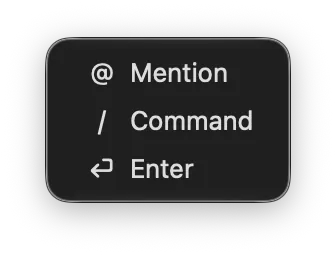
Build your own menu, item by item.
Name each item whatever you like and decide what it does — type a snippet of text (an @ mention, a slash command, your email address, anything) or press a special key like Return, Escape, or Tab.
Add, edit, delete, and drag to reorder, up to five items. It ships with Mention, Command, and Enter ready to go — keep them, rename them, or replace them entirely.
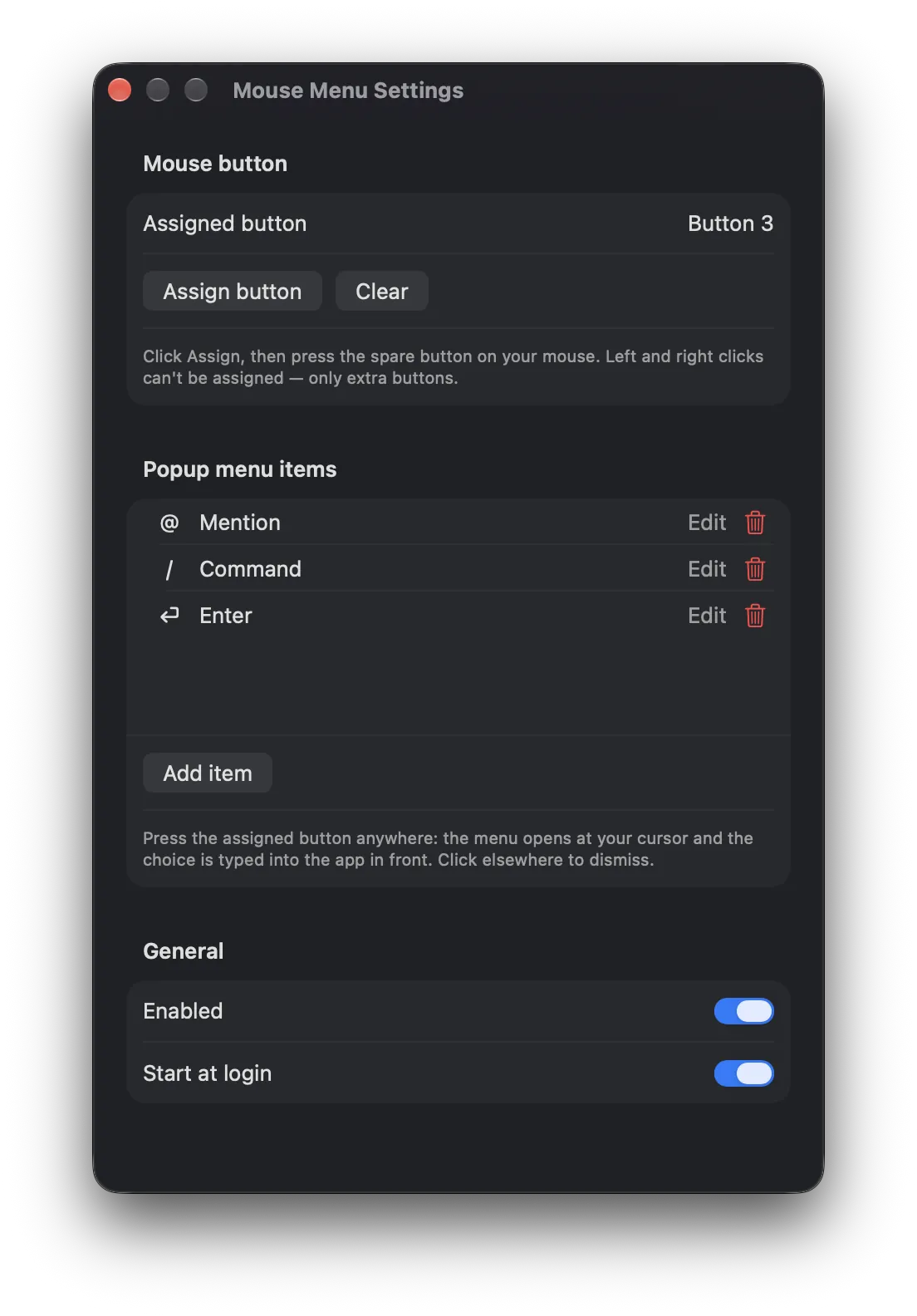
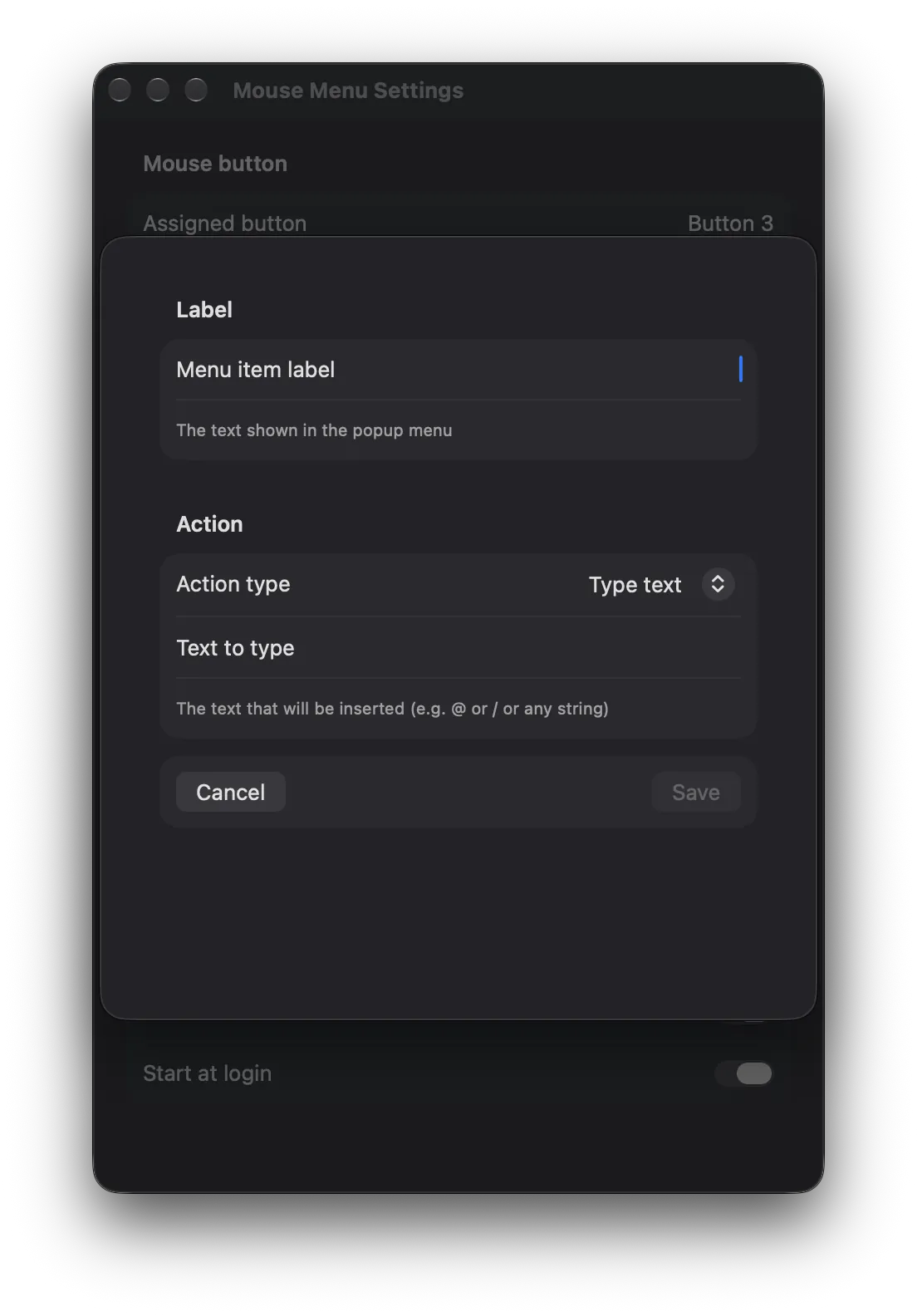
Adding an item is one little window.
Give it a label, pick "Type text" or "Press a key", fill in the detail, save. That's the whole job — no scripting, no macro recorder, nothing to learn.
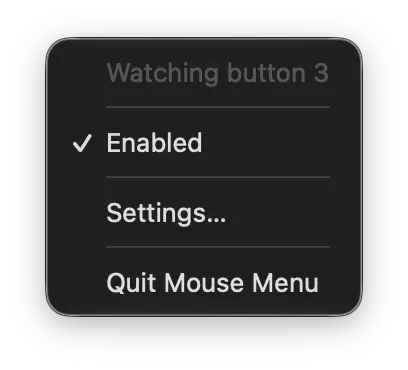
It lives quietly in your menu bar.
Mouse Menu sits in the menu bar and minds its own business. Turn it off for a while without quitting, have it start at login, and open Settings when you want to tinker. Left and right clicks are never touched — it only ever listens for the one button you assign.
Two small things to know.
- It needs Accessibility permission, which macOS asks for the first time you run it. That's what lets Mouse Menu see your button press and type into other apps; it never sees your normal left and right clicks.
- You need a mouse with a spare button — any extra button macOS can see (back, forward, middle, thumb buttons). Assign it once in Settings and you're done.
Key features
- Press a spare mouse button, get a menu at your cursor — in any app
- Items type text or press special keys (Return, Escape, Tab, Delete, Space)
- Fully customisable: your labels, your actions, add, edit, delete, reorder
- Up to five items, with Mention, Command, and Enter built in
- Works with any mouse macOS can see — tested on Logitech trackball and standard mice
- Never touches left or right clicks — only the one button you assign
- Lives in the menu bar, optional start at login
- Free, no ads — signed and notarised direct download, no App Store required
Free. Genuinely.
Mouse Menu is a free download — a signed, notarised disk image, only about 2.5 MB. No account, no in-app purchases, nothing phoning home.